> ## Documentation Index
> Fetch the complete documentation index at: https://support.xraysim.com/llms.txt
> Use this file to discover all available pages before exploring further.
# Release Notes
> Read about the latest X-ray Simulator updates
# Version 1.10.1
Download the newest available version of the X-ray Simulator on the [download page](/Download/download).
***
## New Tibia and Fibula Simulation
Version 1.10.1 adds a Tibia and Fibula simulation for practicing lower-leg positioning. The simulation includes AP and lateral views, new patient positioning, and example images that students and faculty can use for comparison.
Students can find the simulation in the region selector.
## Digital X-ray Images
Version 1.10.1 adds a digital image option. The existing raw image option is still available.
Students can switch between:
* **Digital image**: a processed image that is closer to the review experience used with digital radiography systems.
* **Raw image**: the simulator image before digital processing.
Digital images show exposure index (EI), target exposure index, and deviation index (DI). These values help students and faculty discuss whether the exposure is close to the intended range.
## Image Review Tools
Desktop and VR now include more tools for reviewing digital images:
* Histogram views that show how light and dark values are distributed in the image.
* Window width and window level controls for adjusting how bright and contrasty the image looks.
Note: Some digital image review tools may vary depending on how the simulator is installed.
## Saved Projection Improvements
Saved projections now keep more of the setup when they are reopened. This includes whether the image was saved as digital or raw, image display settings, left/right ruler placement, mobile plate holder position, and the simulator version used to save the projection.
This helps saved cases load more consistently for faculty demonstrations and student practice sessions. Older shoulder saved projections from version 1.9.0 should also open more reliably.
## Stability and Usability Improvements
Desktop X-ray image generation has been updated so the simulator does not keep rebuilding the image when nothing has moved. This helps reduce unwanted image noise, especially at low mAs settings.
The VR X-ray Simulator also now supports keyboard input during login.
## VitaSim Launcher Kiosk Mode
Version 1.10.1 adds the VitaSim Launcher for VR training stations that run in Windows kiosk mode, where the PC is used as a locked training station. The launcher guides students through Meta Link, headset connection, and Enable Link checks before the simulator starts.
For faculty, simulation staff, and IT staff, the launcher gives each station a repeatable startup checklist. Staff can check station readiness, open support, restart or shut down the PC, and exit kiosk mode when maintenance is needed.
[Read more about running the VR X-ray Simulator as a kiosk](/Tech/running-the-x-ray-sim-as-a-kiosk)
## Room and Scene Updates
This release also improves several room interactions and visual details:
* Plate handling.
* Table bucky and mobile plate holder movement.
* Patient positioning.
* Cervical spine (C-spine) and skull bone visibility under clothing.
* Shoulder skin coverage.
* Collimation display behavior.
Directional arrows now show which way movable room controls can be adjusted. This makes it easier for students to understand how a control moves before they interact with it.
## Automatic Updates
Version 1.10.1 adds automatic update support for the X-ray Simulator. This makes it easier for standard installations to move to future releases without manually downloading a new installer each time.
For centrally managed computers, IT teams can still control deployment through the MDM installers listed below.
## Installer Availability
Version 1.10.1 is available as:
* [Windows Desktop X-ray Simulator](https://storage.googleapis.com/platform-builds/x-ray-simulator/desktop-x-ray-simulator/production/VitaSim.XraySim.Desktop-win-Setup.exe)
* [macOS Desktop X-ray Simulator](https://storage.googleapis.com/platform-builds/x-ray-simulator/desktop-x-ray-simulator/production/Desktop-X-Ray-Simulator-1.10.1.dmg)
* [Windows VR X-ray Simulator](https://storage.googleapis.com/platform-builds/x-ray-simulator/vr-x-ray-simulator/production/VitaSim.XraySim.VR-win-Setup.exe)
This release also introduces dedicated managed deployment packages for Windows Desktop and Windows VR installations. IT teams can download the new `.msi` installers and Microsoft Intune `.intunewin` packages from the [download page](/Download/download#mdm-deployment-packages), with deployment commands and detection guidance in the [MDM deployment guide](/Tech/mdm-deployment-instructions).
Direct MDM package links:
* [Desktop X-ray Simulator MDM MSI](https://storage.googleapis.com/platform-builds/x-ray-simulator/desktop-x-ray-simulator/production/mdm/1.10.1/DesktopX-raySimulator-MDM-1.10.1.msi)
* [Desktop X-ray Simulator Intune package](https://storage.googleapis.com/platform-builds/x-ray-simulator/desktop-x-ray-simulator/production/mdm/1.10.1/DesktopX-raySimulator-MDM-1.10.1.intunewin)
* [VR X-ray Simulator MDM MSI](https://storage.googleapis.com/platform-builds/x-ray-simulator/vr-x-ray-simulator/production/mdm/1.10.1/VRX-raySimulator-MDM-1.10.1.msi)
* [VR X-ray Simulator Intune package](https://storage.googleapis.com/platform-builds/x-ray-simulator/vr-x-ray-simulator/production/mdm/1.10.1/VRX-raySimulator-MDM-1.10.1.intunewin)
***
Feedback and support: [support.xraysim.com](https://support.xraysim.com) or [support@vitasim.dk](mailto:support@vitasim.dk)
# Version 1.9.0
Download the newest version of the X-ray Simulator on the [download page](/Download/download)
***
## Updated Room Layout for Easier Workflow
We have redesigned the room layout and removed the door to improve movement between the examination and control rooms.
Additionally, the room has been expanded to accommodate the new Detenting and Bucky features introduced in this release.
## Table and Wall Bucky Support for More Realistic Exams
We are excited to introduce support for table and wall bucky in the X-ray Simulator, enhancing the realism of student exams.
Key features include:
* Pull the bucky out using the main handles, and adjust it up/down or side/side with the knob handle.
* The bucky automatically snaps in and out for ease of use.
* The plate can only be positioned at the center, but its orientation affects how it sits in the bucky. Use this to align the long axis of the plate when needed.
## X-ray Tube Detenting to Wall Bucky and Radiographic Table
With the introduction of the bucky feature, we've added the ability to detent the X-ray tube to the center of the wall bucky or radiographic table. This mimics real-life beam alignment challenges.
How to use:
* Activate detenting with the new toggle button at the top left.
* Move the tube into position until you hear a click; detenting is confirmed by a colored light on the tube's front.
* Click the toggle button again to release the detent.
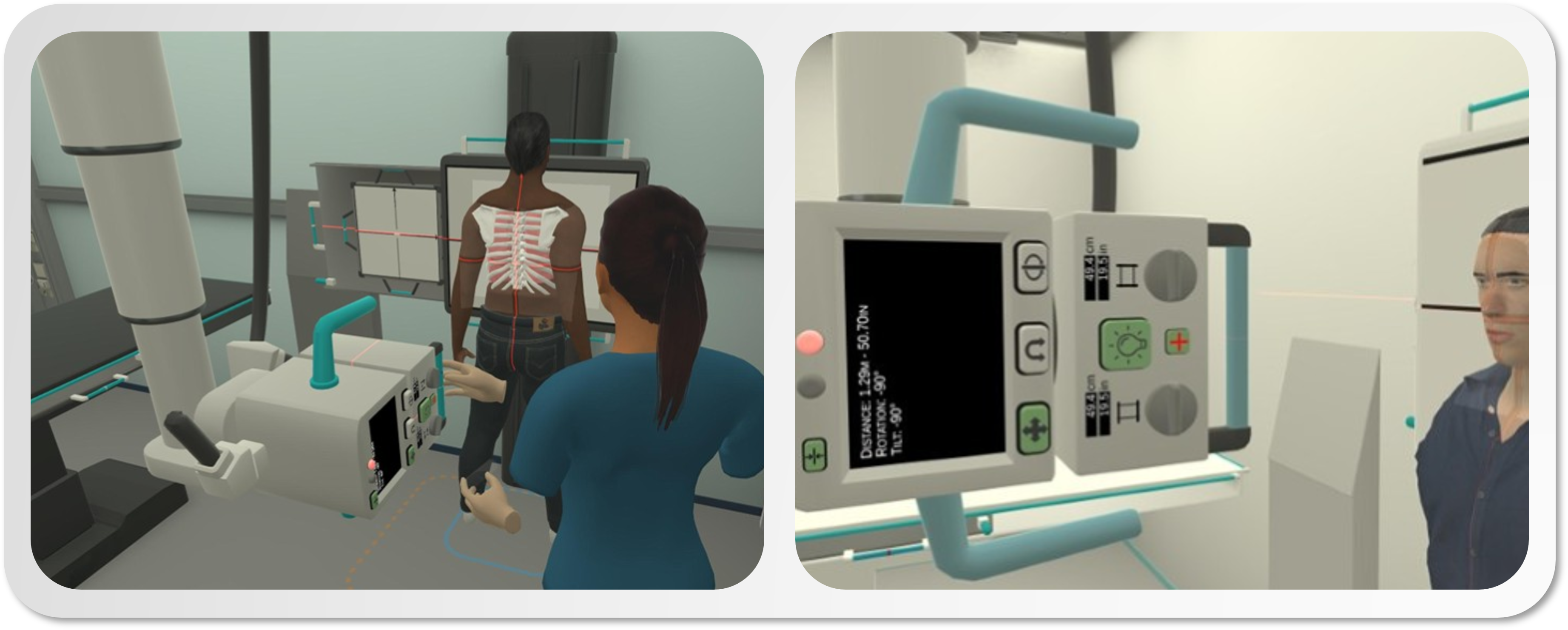
## Guiding Laser Toggle for Plate Centering in the Bucky
To assist with centering the central ray on the hidden plate inside the bucky, we've added a guiding laser on the virtual X-ray Tube.
Instructions:
* Turn on the laser using the new button located between the collimation dials.
* Click the button again to turn off the laser.
* Note: The collimation field and laser are controlled separately.
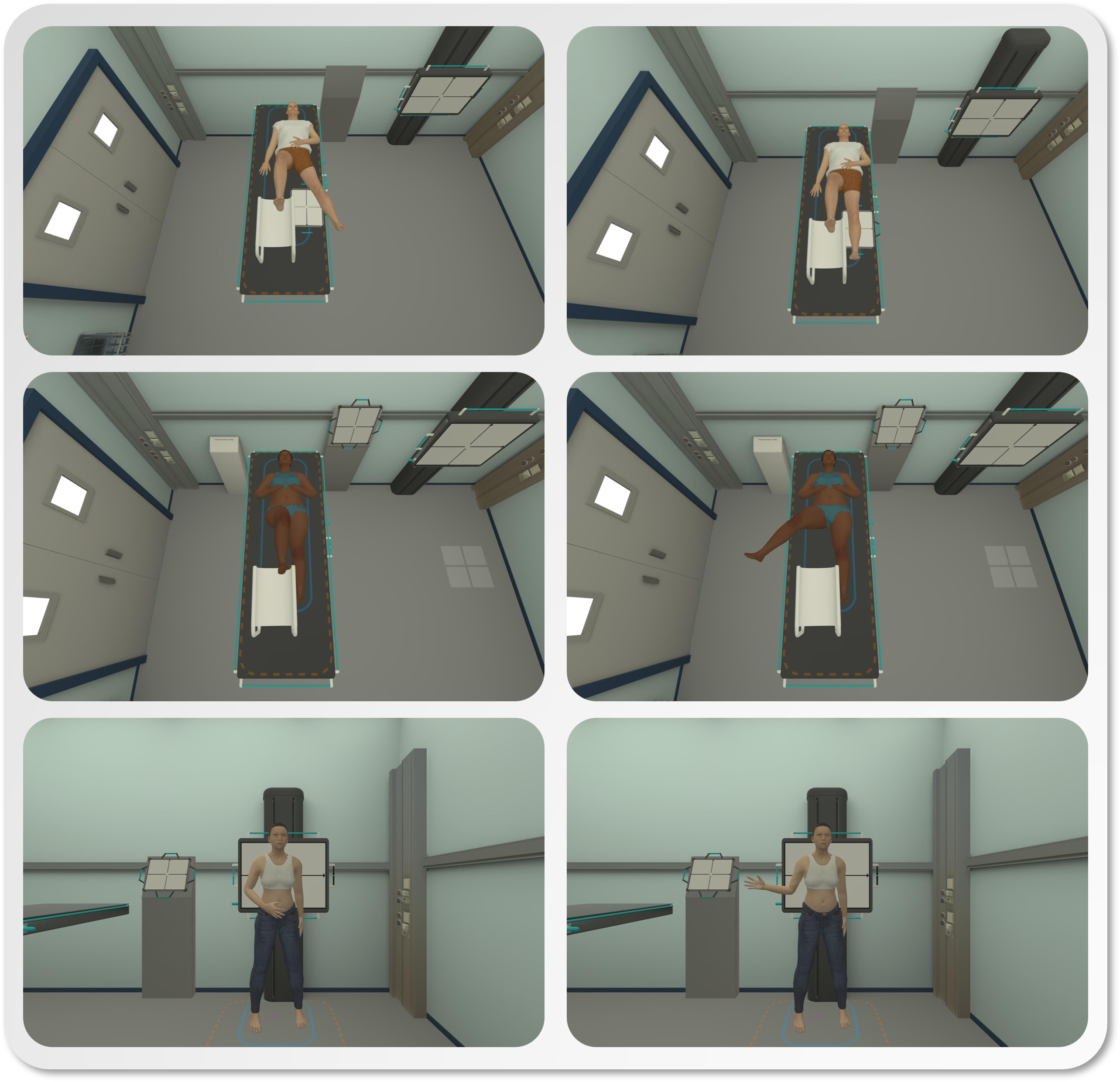
## New Joint Mobilities for Improved Simulation Training
We've added new joint mobilities in select simulations to enhance training realism:
* The simulated cross-table knee exam now supports adduction and abduction, helping students align femur condyles in lateral images.
* The axis hip exam features a mobility that allows the raised leg to be pulled out and up, clearing axial images of overlapping thigh muscle mass.
* The shoulder simulation now enables arm rotation inward and outward, giving students more control for humerus alignment.
New joint mobilities can be adjusted by grabbing the highlighted regions.
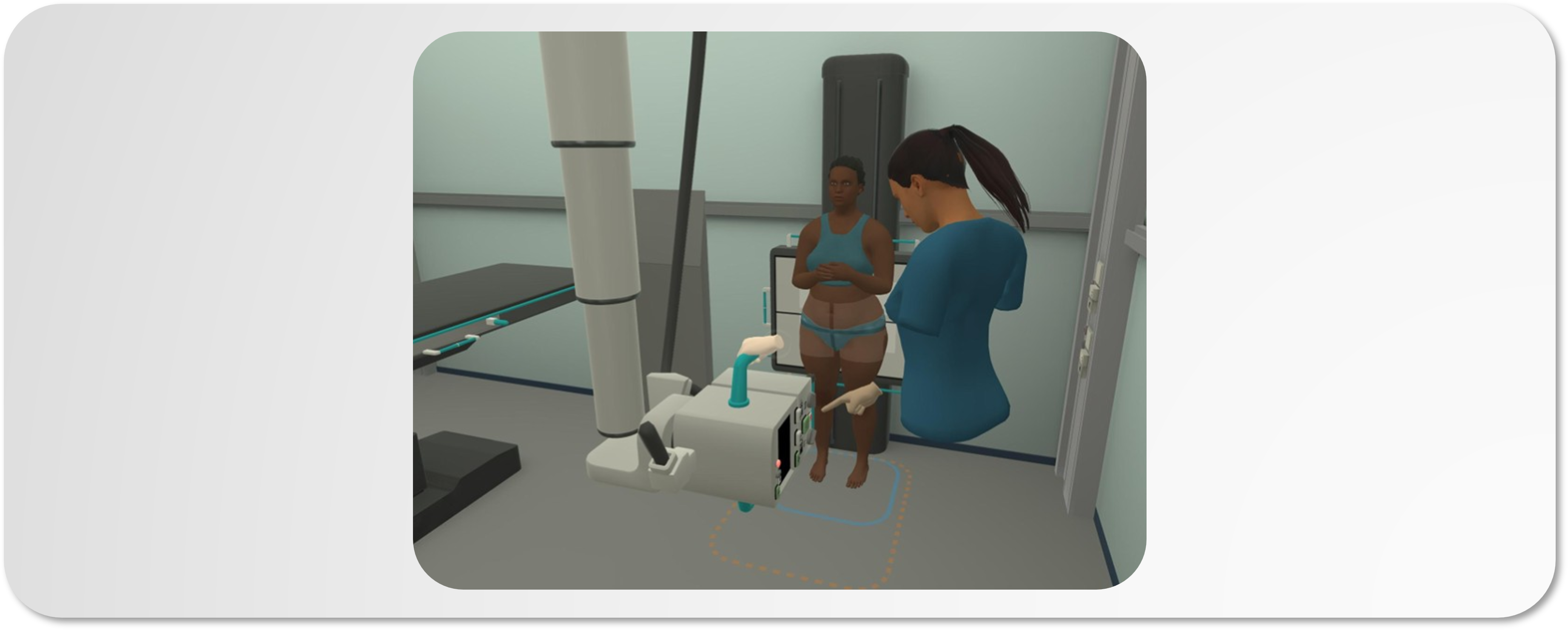
## New Standing Patient Simulation for Pelvic/Hip Case
Due to popular demand, a standing hip simulation is now available, reflecting common examination approaches in some countries.
You can find the new simulation under the existing hip/pelvic case by selecting the "standing" patient option.
***
Feedback and support: [support.xraysim.com](https://support.xraysim.com) or [support@vitasim.dk](mailto:support@vitasim.dk)
# Version 1.8.0 - Major Update
Download the newest version of the X-ray Simulator on the [download page](/Download/download)
***
## Expanded Simulation Catalog
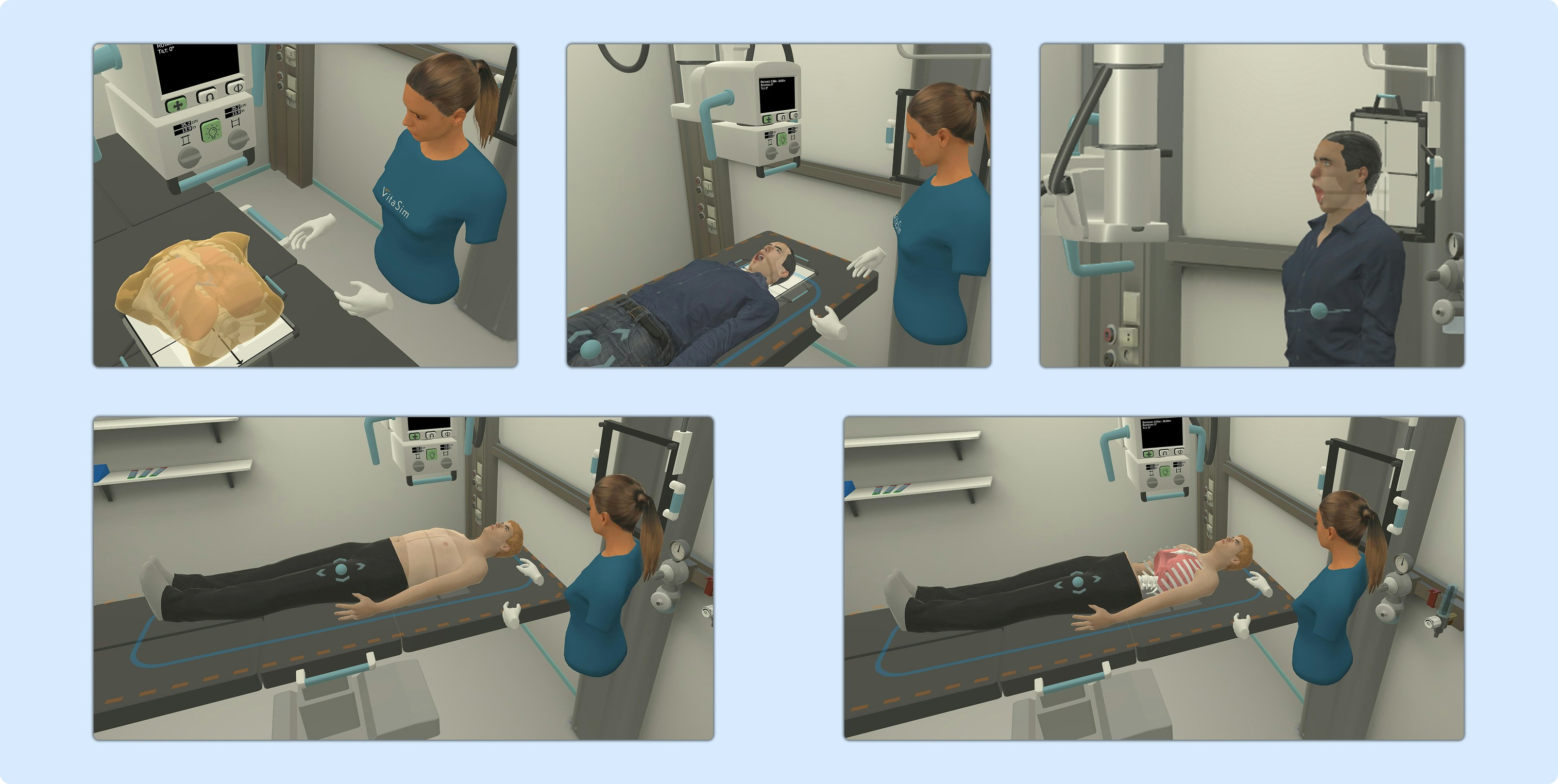
Five new anatomical regions have been introduced with full positional controls and anatomical models:
The new regions include:
* **Bony Thorax (+ Sternum)**
* **Cervical Spine (C-Spine)**
* **Thoracic Spine (T-Spine)**
* **Lumbar Spine (L-Spine)**
* **Skull**
If you want to explore all the details of the new regions, you can find them in the Simulation Catalog (PDF).
***
## Core Improvements
### Desktop X-ray Simulator
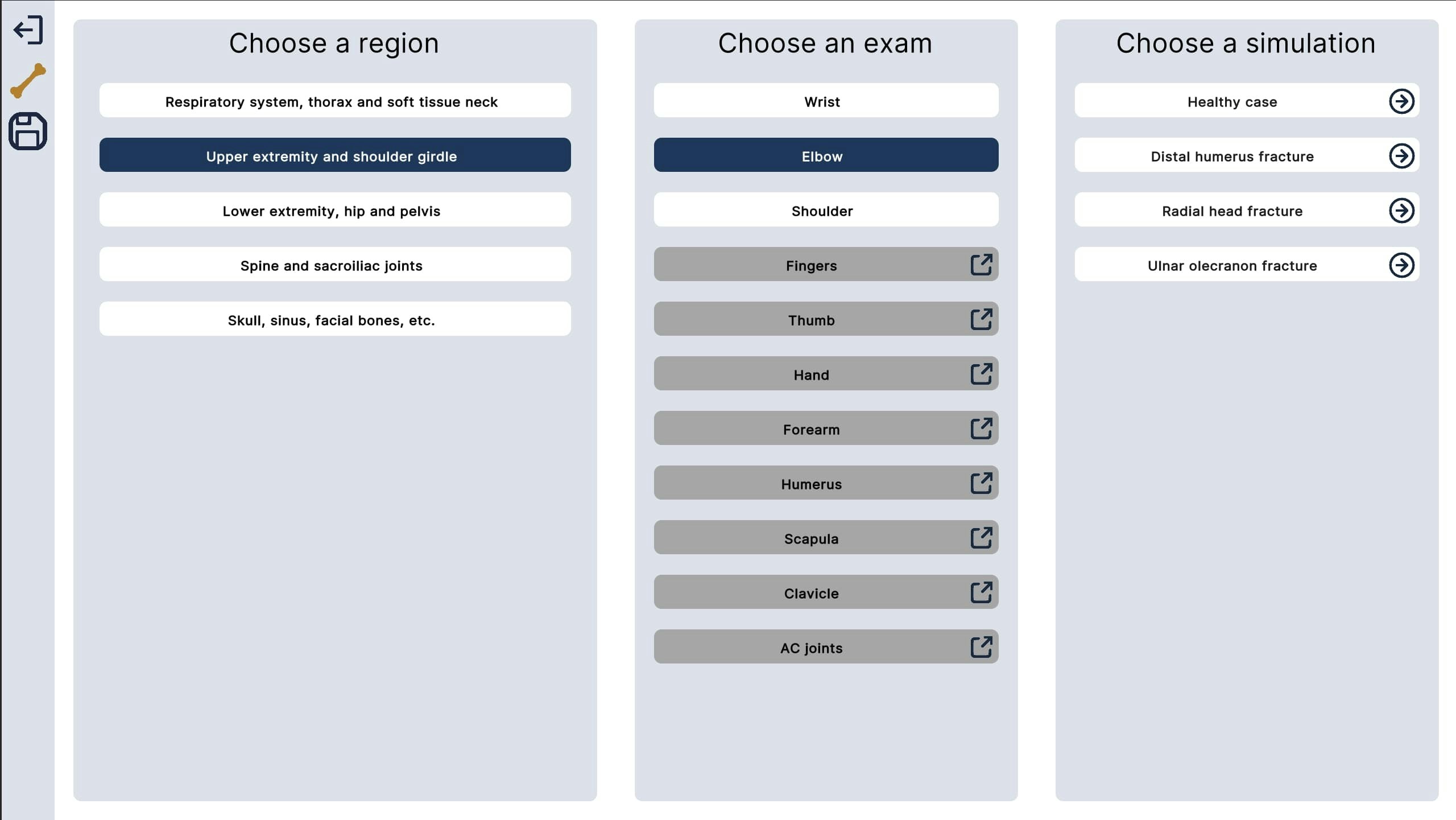
* **Redesigned Region Selection**:
```
Region -> Exam -> Simulation
```
This update simplifies navigation and aligns with the categorization used in most RadTech positioning books.
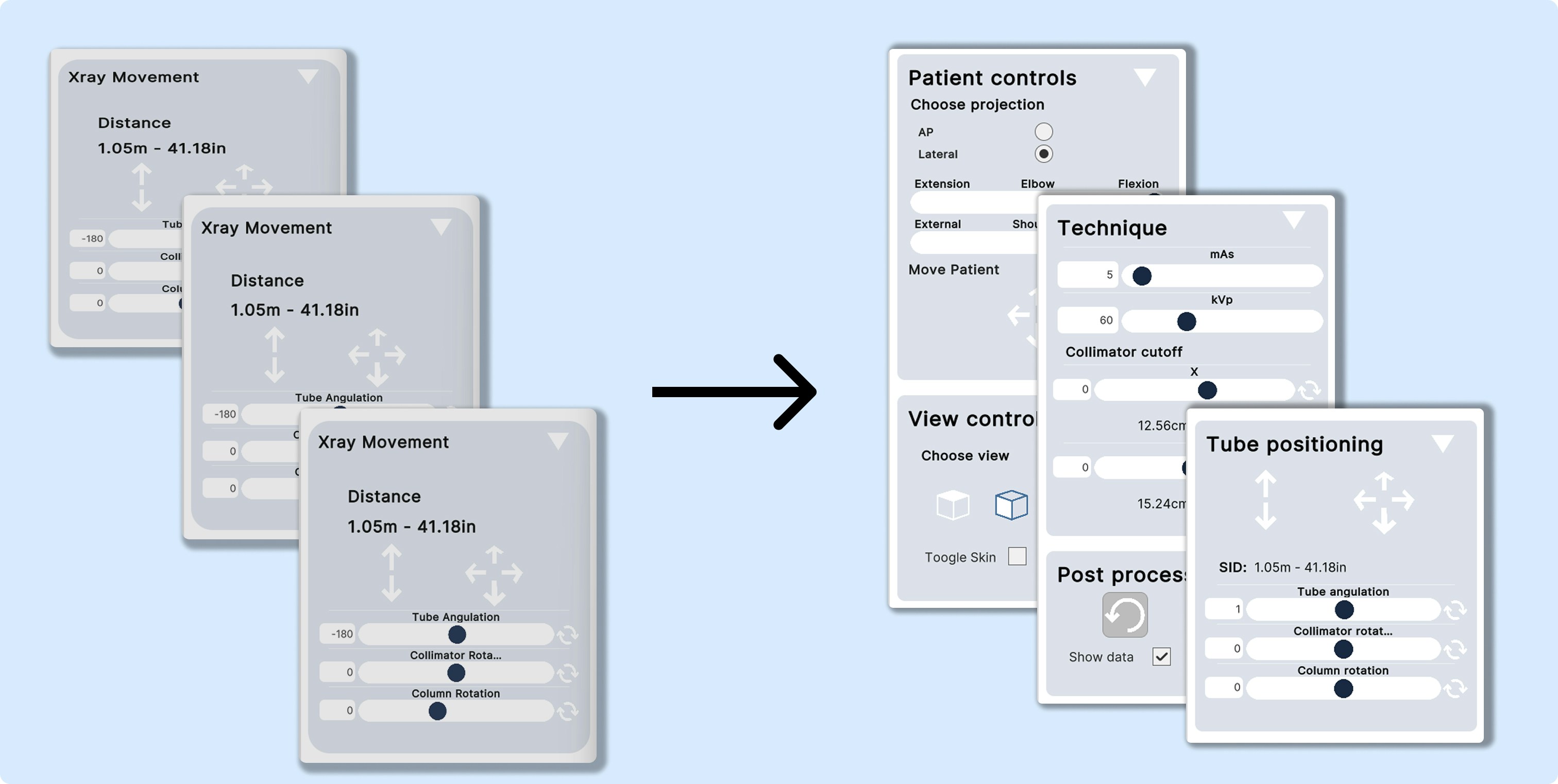
* **Control Panel Overhaul**:
* Cleaner layout with more intuitive grouping.
* The new **View Controls** panel allows you to toggle "collimation mode" via the grid-icon UI.
* The Technique panel now shows an **estimate of the collimation cut-off size**.
* Tube positioning controls now show an estimate of SID based on tube position and angle.
* **New Functionalities**:
* Users can now toggle skin visibility on the patient model.
* Users can now adjust bed height via a slider for improved positioning practice.
* **Patient Movement**:
* The patient can now be translated either in the horizontal plane (for standing) or the frontal plane (for supine).
***
## VR X-ray Simulator
* **New Patient Gizmo**:
A virtual tool has been introduced to grab and reposition the patient.
Grab and drag the control gizmo to reposition the patient.
* **UI Enhancements**:
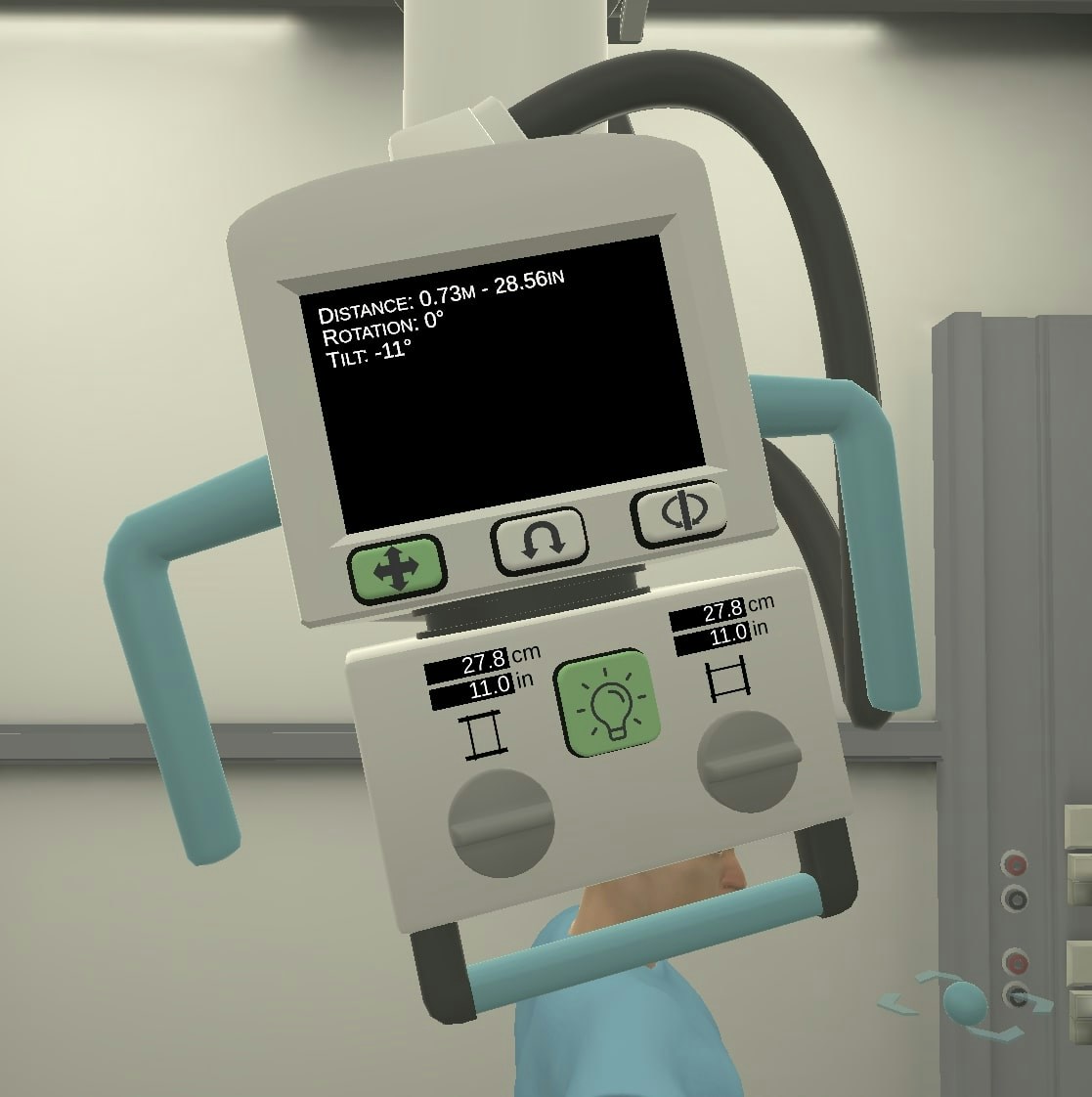
* Users can now grab the plate from all sides.
* Estimated collimator size and SID are now visible in the tube display.
***
Feedback and support: [support.xraysim.com](https://support.xraysim.com) or [support@vitasim.dk](mailto:support@vitasim.dk)

 ## Digital X-ray Images
Version 1.10.1 adds a digital image option. The existing raw image option is still available.
Students can switch between:
* **Digital image**: a processed image that is closer to the review experience used with digital radiography systems.
* **Raw image**: the simulator image before digital processing.
Digital images show exposure index (EI), target exposure index, and deviation index (DI). These values help students and faculty discuss whether the exposure is close to the intended range.
## Digital X-ray Images
Version 1.10.1 adds a digital image option. The existing raw image option is still available.
Students can switch between:
* **Digital image**: a processed image that is closer to the review experience used with digital radiography systems.
* **Raw image**: the simulator image before digital processing.
Digital images show exposure index (EI), target exposure index, and deviation index (DI). These values help students and faculty discuss whether the exposure is close to the intended range.
 ## Image Review Tools
Desktop and VR now include more tools for reviewing digital images:
* Histogram views that show how light and dark values are distributed in the image.
* Window width and window level controls for adjusting how bright and contrasty the image looks.
Note: Some digital image review tools may vary depending on how the simulator is installed.
## Image Review Tools
Desktop and VR now include more tools for reviewing digital images:
* Histogram views that show how light and dark values are distributed in the image.
* Window width and window level controls for adjusting how bright and contrasty the image looks.
Note: Some digital image review tools may vary depending on how the simulator is installed.
 ## Saved Projection Improvements
Saved projections now keep more of the setup when they are reopened. This includes whether the image was saved as digital or raw, image display settings, left/right ruler placement, mobile plate holder position, and the simulator version used to save the projection.
This helps saved cases load more consistently for faculty demonstrations and student practice sessions. Older shoulder saved projections from version 1.9.0 should also open more reliably.
## Stability and Usability Improvements
Desktop X-ray image generation has been updated so the simulator does not keep rebuilding the image when nothing has moved. This helps reduce unwanted image noise, especially at low mAs settings.
The VR X-ray Simulator also now supports keyboard input during login.
## VitaSim Launcher Kiosk Mode
Version 1.10.1 adds the VitaSim Launcher for VR training stations that run in Windows kiosk mode, where the PC is used as a locked training station. The launcher guides students through Meta Link, headset connection, and Enable Link checks before the simulator starts.
For faculty, simulation staff, and IT staff, the launcher gives each station a repeatable startup checklist. Staff can check station readiness, open support, restart or shut down the PC, and exit kiosk mode when maintenance is needed.
[Read more about running the VR X-ray Simulator as a kiosk](/Tech/running-the-x-ray-sim-as-a-kiosk)
## Saved Projection Improvements
Saved projections now keep more of the setup when they are reopened. This includes whether the image was saved as digital or raw, image display settings, left/right ruler placement, mobile plate holder position, and the simulator version used to save the projection.
This helps saved cases load more consistently for faculty demonstrations and student practice sessions. Older shoulder saved projections from version 1.9.0 should also open more reliably.
## Stability and Usability Improvements
Desktop X-ray image generation has been updated so the simulator does not keep rebuilding the image when nothing has moved. This helps reduce unwanted image noise, especially at low mAs settings.
The VR X-ray Simulator also now supports keyboard input during login.
## VitaSim Launcher Kiosk Mode
Version 1.10.1 adds the VitaSim Launcher for VR training stations that run in Windows kiosk mode, where the PC is used as a locked training station. The launcher guides students through Meta Link, headset connection, and Enable Link checks before the simulator starts.
For faculty, simulation staff, and IT staff, the launcher gives each station a repeatable startup checklist. Staff can check station readiness, open support, restart or shut down the PC, and exit kiosk mode when maintenance is needed.
[Read more about running the VR X-ray Simulator as a kiosk](/Tech/running-the-x-ray-sim-as-a-kiosk)
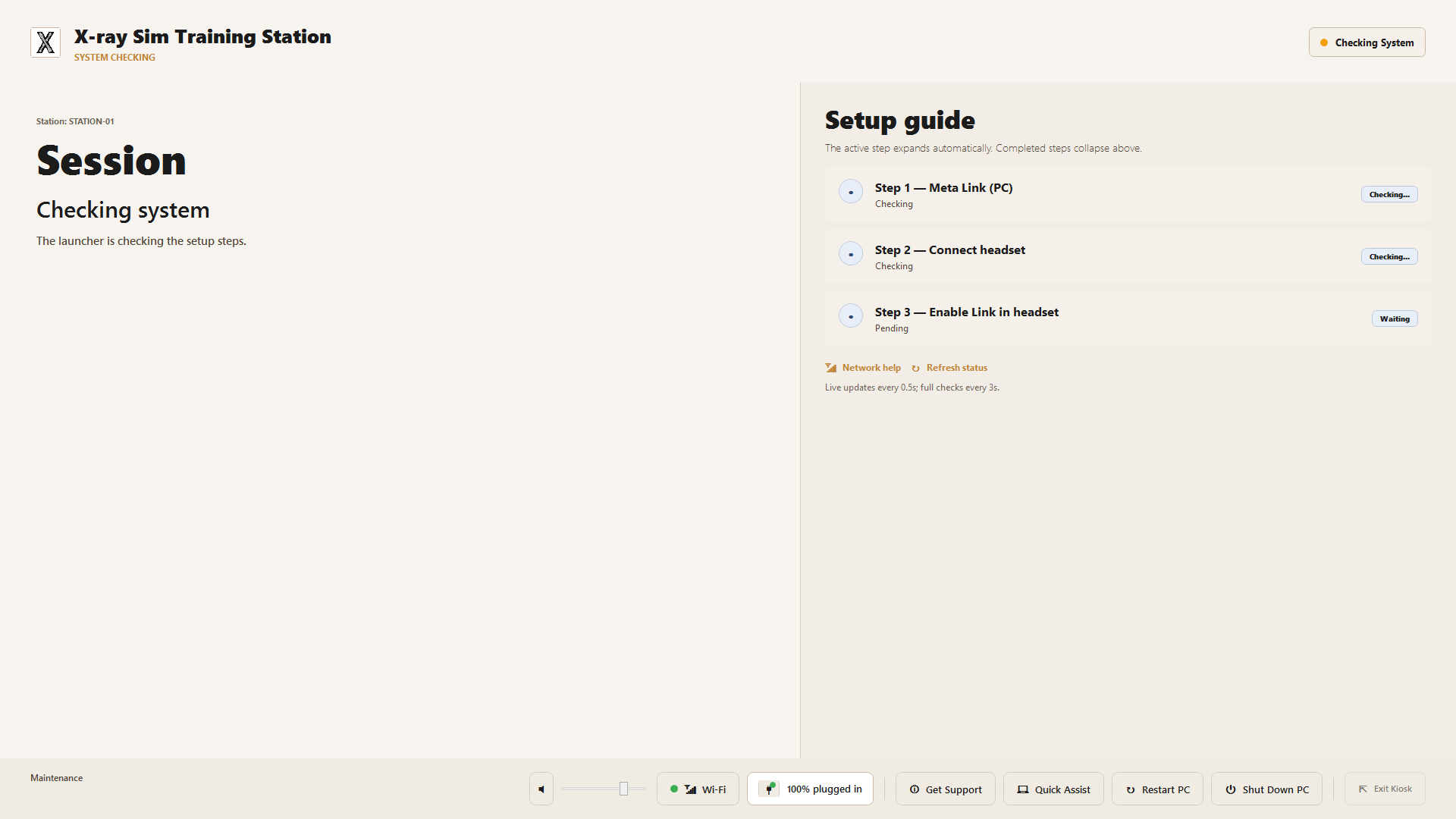 ## Room and Scene Updates
This release also improves several room interactions and visual details:
* Plate handling.
* Table bucky and mobile plate holder movement.
* Patient positioning.
* Cervical spine (C-spine) and skull bone visibility under clothing.
* Shoulder skin coverage.
* Collimation display behavior.
Directional arrows now show which way movable room controls can be adjusted. This makes it easier for students to understand how a control moves before they interact with it.
## Room and Scene Updates
This release also improves several room interactions and visual details:
* Plate handling.
* Table bucky and mobile plate holder movement.
* Patient positioning.
* Cervical spine (C-spine) and skull bone visibility under clothing.
* Shoulder skin coverage.
* Collimation display behavior.
Directional arrows now show which way movable room controls can be adjusted. This makes it easier for students to understand how a control moves before they interact with it.

 ## Automatic Updates
Version 1.10.1 adds automatic update support for the X-ray Simulator. This makes it easier for standard installations to move to future releases without manually downloading a new installer each time.
For centrally managed computers, IT teams can still control deployment through the MDM installers listed below.
## Installer Availability
Version 1.10.1 is available as:
* [Windows Desktop X-ray Simulator](https://storage.googleapis.com/platform-builds/x-ray-simulator/desktop-x-ray-simulator/production/VitaSim.XraySim.Desktop-win-Setup.exe)
* [macOS Desktop X-ray Simulator](https://storage.googleapis.com/platform-builds/x-ray-simulator/desktop-x-ray-simulator/production/Desktop-X-Ray-Simulator-1.10.1.dmg)
* [Windows VR X-ray Simulator](https://storage.googleapis.com/platform-builds/x-ray-simulator/vr-x-ray-simulator/production/VitaSim.XraySim.VR-win-Setup.exe)
This release also introduces dedicated managed deployment packages for Windows Desktop and Windows VR installations. IT teams can download the new `.msi` installers and Microsoft Intune `.intunewin` packages from the [download page](/Download/download#mdm-deployment-packages), with deployment commands and detection guidance in the [MDM deployment guide](/Tech/mdm-deployment-instructions).
Direct MDM package links:
* [Desktop X-ray Simulator MDM MSI](https://storage.googleapis.com/platform-builds/x-ray-simulator/desktop-x-ray-simulator/production/mdm/1.10.1/DesktopX-raySimulator-MDM-1.10.1.msi)
* [Desktop X-ray Simulator Intune package](https://storage.googleapis.com/platform-builds/x-ray-simulator/desktop-x-ray-simulator/production/mdm/1.10.1/DesktopX-raySimulator-MDM-1.10.1.intunewin)
* [VR X-ray Simulator MDM MSI](https://storage.googleapis.com/platform-builds/x-ray-simulator/vr-x-ray-simulator/production/mdm/1.10.1/VRX-raySimulator-MDM-1.10.1.msi)
* [VR X-ray Simulator Intune package](https://storage.googleapis.com/platform-builds/x-ray-simulator/vr-x-ray-simulator/production/mdm/1.10.1/VRX-raySimulator-MDM-1.10.1.intunewin)
***
Feedback and support: [support.xraysim.com](https://support.xraysim.com) or [support@vitasim.dk](mailto:support@vitasim.dk)
## Automatic Updates
Version 1.10.1 adds automatic update support for the X-ray Simulator. This makes it easier for standard installations to move to future releases without manually downloading a new installer each time.
For centrally managed computers, IT teams can still control deployment through the MDM installers listed below.
## Installer Availability
Version 1.10.1 is available as:
* [Windows Desktop X-ray Simulator](https://storage.googleapis.com/platform-builds/x-ray-simulator/desktop-x-ray-simulator/production/VitaSim.XraySim.Desktop-win-Setup.exe)
* [macOS Desktop X-ray Simulator](https://storage.googleapis.com/platform-builds/x-ray-simulator/desktop-x-ray-simulator/production/Desktop-X-Ray-Simulator-1.10.1.dmg)
* [Windows VR X-ray Simulator](https://storage.googleapis.com/platform-builds/x-ray-simulator/vr-x-ray-simulator/production/VitaSim.XraySim.VR-win-Setup.exe)
This release also introduces dedicated managed deployment packages for Windows Desktop and Windows VR installations. IT teams can download the new `.msi` installers and Microsoft Intune `.intunewin` packages from the [download page](/Download/download#mdm-deployment-packages), with deployment commands and detection guidance in the [MDM deployment guide](/Tech/mdm-deployment-instructions).
Direct MDM package links:
* [Desktop X-ray Simulator MDM MSI](https://storage.googleapis.com/platform-builds/x-ray-simulator/desktop-x-ray-simulator/production/mdm/1.10.1/DesktopX-raySimulator-MDM-1.10.1.msi)
* [Desktop X-ray Simulator Intune package](https://storage.googleapis.com/platform-builds/x-ray-simulator/desktop-x-ray-simulator/production/mdm/1.10.1/DesktopX-raySimulator-MDM-1.10.1.intunewin)
* [VR X-ray Simulator MDM MSI](https://storage.googleapis.com/platform-builds/x-ray-simulator/vr-x-ray-simulator/production/mdm/1.10.1/VRX-raySimulator-MDM-1.10.1.msi)
* [VR X-ray Simulator Intune package](https://storage.googleapis.com/platform-builds/x-ray-simulator/vr-x-ray-simulator/production/mdm/1.10.1/VRX-raySimulator-MDM-1.10.1.intunewin)
***
Feedback and support: [support.xraysim.com](https://support.xraysim.com) or [support@vitasim.dk](mailto:support@vitasim.dk)
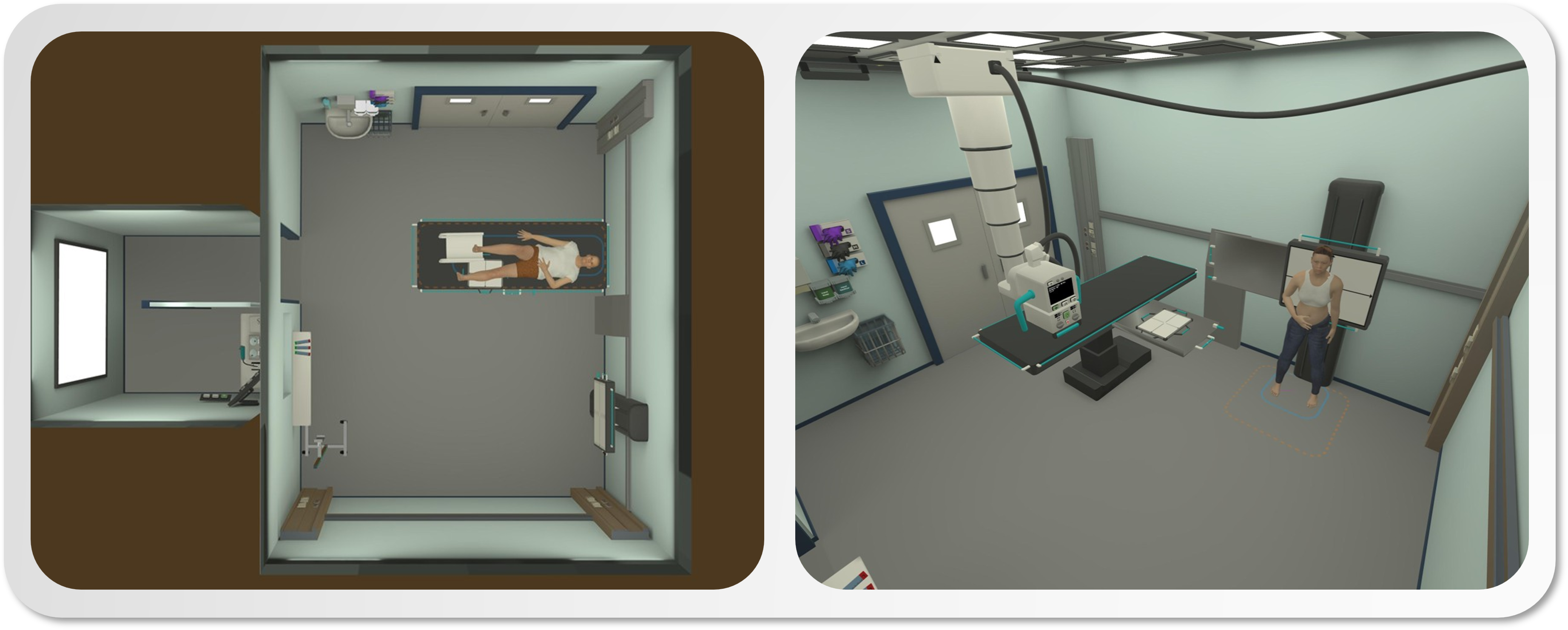 ## Table and Wall Bucky Support for More Realistic Exams
We are excited to introduce support for table and wall bucky in the X-ray Simulator, enhancing the realism of student exams.
Key features include:
* Pull the bucky out using the main handles, and adjust it up/down or side/side with the knob handle.
* The bucky automatically snaps in and out for ease of use.
* The plate can only be positioned at the center, but its orientation affects how it sits in the bucky. Use this to align the long axis of the plate when needed.
## Table and Wall Bucky Support for More Realistic Exams
We are excited to introduce support for table and wall bucky in the X-ray Simulator, enhancing the realism of student exams.
Key features include:
* Pull the bucky out using the main handles, and adjust it up/down or side/side with the knob handle.
* The bucky automatically snaps in and out for ease of use.
* The plate can only be positioned at the center, but its orientation affects how it sits in the bucky. Use this to align the long axis of the plate when needed.
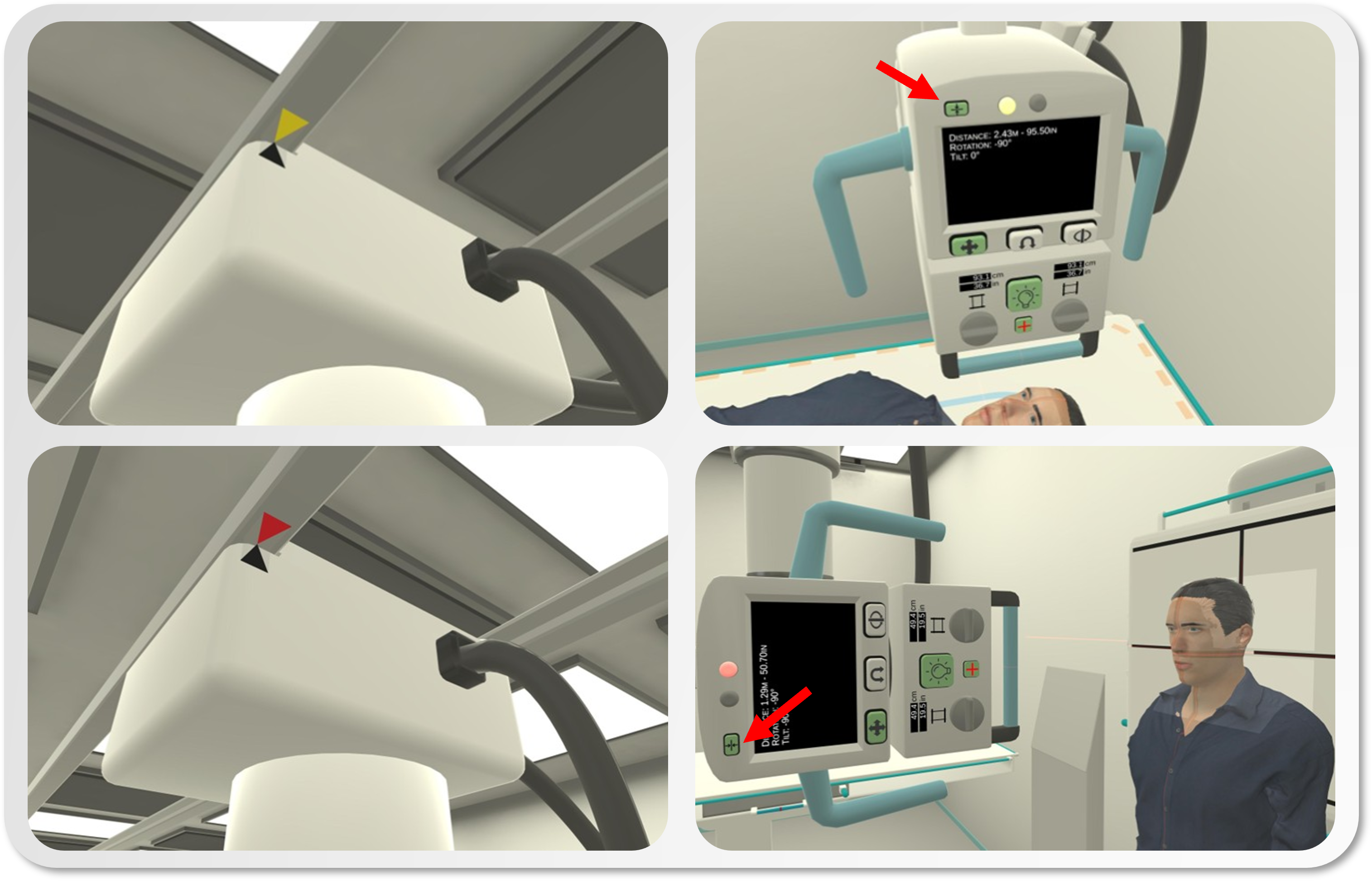
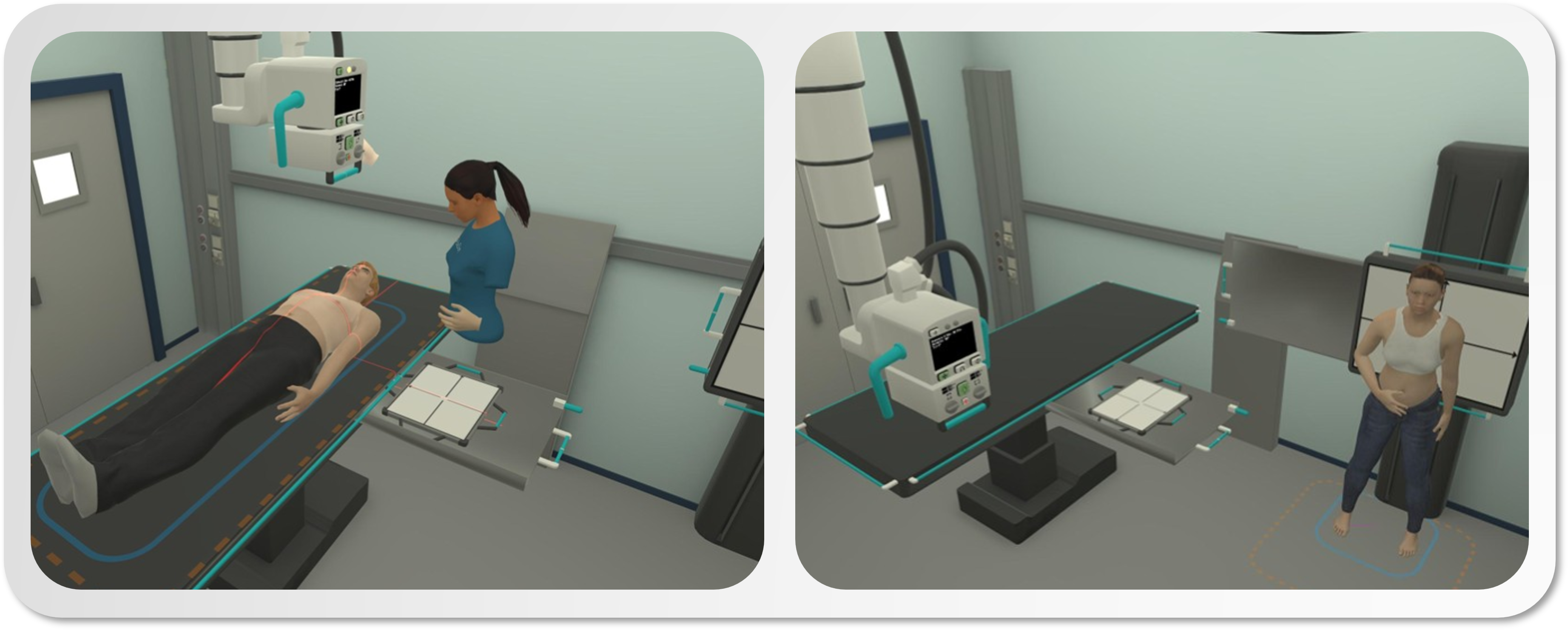 ## X-ray Tube Detenting to Wall Bucky and Radiographic Table
With the introduction of the bucky feature, we've added the ability to detent the X-ray tube to the center of the wall bucky or radiographic table. This mimics real-life beam alignment challenges.
How to use:
* Activate detenting with the new toggle button at the top left.
* Move the tube into position until you hear a click; detenting is confirmed by a colored light on the tube's front.
* Click the toggle button again to release the detent.
## X-ray Tube Detenting to Wall Bucky and Radiographic Table
With the introduction of the bucky feature, we've added the ability to detent the X-ray tube to the center of the wall bucky or radiographic table. This mimics real-life beam alignment challenges.
How to use:
* Activate detenting with the new toggle button at the top left.
* Move the tube into position until you hear a click; detenting is confirmed by a colored light on the tube's front.
* Click the toggle button again to release the detent.
 ## Guiding Laser Toggle for Plate Centering in the Bucky
To assist with centering the central ray on the hidden plate inside the bucky, we've added a guiding laser on the virtual X-ray Tube.
Instructions:
* Turn on the laser using the new button located between the collimation dials.
* Click the button again to turn off the laser.
* Note: The collimation field and laser are controlled separately.
## Guiding Laser Toggle for Plate Centering in the Bucky
To assist with centering the central ray on the hidden plate inside the bucky, we've added a guiding laser on the virtual X-ray Tube.
Instructions:
* Turn on the laser using the new button located between the collimation dials.
* Click the button again to turn off the laser.
* Note: The collimation field and laser are controlled separately.
 ## New Joint Mobilities for Improved Simulation Training
We've added new joint mobilities in select simulations to enhance training realism:
* The simulated cross-table knee exam now supports adduction and abduction, helping students align femur condyles in lateral images.
* The axis hip exam features a mobility that allows the raised leg to be pulled out and up, clearing axial images of overlapping thigh muscle mass.
* The shoulder simulation now enables arm rotation inward and outward, giving students more control for humerus alignment.
New joint mobilities can be adjusted by grabbing the highlighted regions.
## New Joint Mobilities for Improved Simulation Training
We've added new joint mobilities in select simulations to enhance training realism:
* The simulated cross-table knee exam now supports adduction and abduction, helping students align femur condyles in lateral images.
* The axis hip exam features a mobility that allows the raised leg to be pulled out and up, clearing axial images of overlapping thigh muscle mass.
* The shoulder simulation now enables arm rotation inward and outward, giving students more control for humerus alignment.
New joint mobilities can be adjusted by grabbing the highlighted regions.
 ## New Standing Patient Simulation for Pelvic/Hip Case
Due to popular demand, a standing hip simulation is now available, reflecting common examination approaches in some countries.
You can find the new simulation under the existing hip/pelvic case by selecting the "standing" patient option.
## New Standing Patient Simulation for Pelvic/Hip Case
Due to popular demand, a standing hip simulation is now available, reflecting common examination approaches in some countries.
You can find the new simulation under the existing hip/pelvic case by selecting the "standing" patient option.
 ***
Feedback and support: [support.xraysim.com](https://support.xraysim.com) or [support@vitasim.dk](mailto:support@vitasim.dk)
***
Feedback and support: [support.xraysim.com](https://support.xraysim.com) or [support@vitasim.dk](mailto:support@vitasim.dk)
 The new regions include:
* **Bony Thorax (+ Sternum)**
* **Cervical Spine (C-Spine)**
* **Thoracic Spine (T-Spine)**
* **Lumbar Spine (L-Spine)**
* **Skull**
The new regions include:
* **Bony Thorax (+ Sternum)**
* **Cervical Spine (C-Spine)**
* **Thoracic Spine (T-Spine)**
* **Lumbar Spine (L-Spine)**
* **Skull**
 * **Control Panel Overhaul**:
* Cleaner layout with more intuitive grouping.
* The new **View Controls** panel allows you to toggle "collimation mode" via the grid-icon UI.
* The Technique panel now shows an **estimate of the collimation cut-off size**.
* Tube positioning controls now show an estimate of SID based on tube position and angle.
* **Control Panel Overhaul**:
* Cleaner layout with more intuitive grouping.
* The new **View Controls** panel allows you to toggle "collimation mode" via the grid-icon UI.
* The Technique panel now shows an **estimate of the collimation cut-off size**.
* Tube positioning controls now show an estimate of SID based on tube position and angle.
 * **New Functionalities**:
* Users can now toggle skin visibility on the patient model.
* Users can now adjust bed height via a slider for improved positioning practice.
* **Patient Movement**:
* The patient can now be translated either in the horizontal plane (for standing) or the frontal plane (for supine).
***
## VR X-ray Simulator
* **New Patient Gizmo**:
A virtual tool has been introduced to grab and reposition the patient.
Grab and drag the control gizmo to reposition the patient.
* **UI Enhancements**:
* Users can now grab the plate from all sides.
* Estimated collimator size and SID are now visible in the tube display.
* **New Functionalities**:
* Users can now toggle skin visibility on the patient model.
* Users can now adjust bed height via a slider for improved positioning practice.
* **Patient Movement**:
* The patient can now be translated either in the horizontal plane (for standing) or the frontal plane (for supine).
***
## VR X-ray Simulator
* **New Patient Gizmo**:
A virtual tool has been introduced to grab and reposition the patient.
Grab and drag the control gizmo to reposition the patient.
* **UI Enhancements**:
* Users can now grab the plate from all sides.
* Estimated collimator size and SID are now visible in the tube display.
 ***
Feedback and support: [support.xraysim.com](https://support.xraysim.com) or [support@vitasim.dk](mailto:support@vitasim.dk)
***
Feedback and support: [support.xraysim.com](https://support.xraysim.com) or [support@vitasim.dk](mailto:support@vitasim.dk)