
Teaching a class? See Use the simulator in your course for a course example and help preparing your first class.
Installation and Login
1
Ensure that your PC meets the hardware requirements
2
Download and install the newest version of the Desktop X-ray Simulator
Download the appropriate platform installer from the download page.Run the installation file (or drag the .dmg file if on Mac OS).
NOTICE for IT admins: The Desktop X-Ray Simulator support multi-user PC/workstation installation using MDM systems, like InTune. See the MDM setup guide for details on running silent installs using command line arguments.
3
Launch the Desktop X-ray simulator and Login
Locate the application on your computer and open it. You will be prompted to log in with your X-ray Simulator account. If you do not have account credentials, reach out to your institution’s X-ray Simulator coordinator or review Accounts and Login.
Navigation and Controls
1
Logging in
Open the Desktop X-ray Simulator application and enter your X-ray Simulator account username and password on the login screen. Click Login to proceed. See Accounts and Login if you need to confirm whether you should use an individual student account or a shared station account.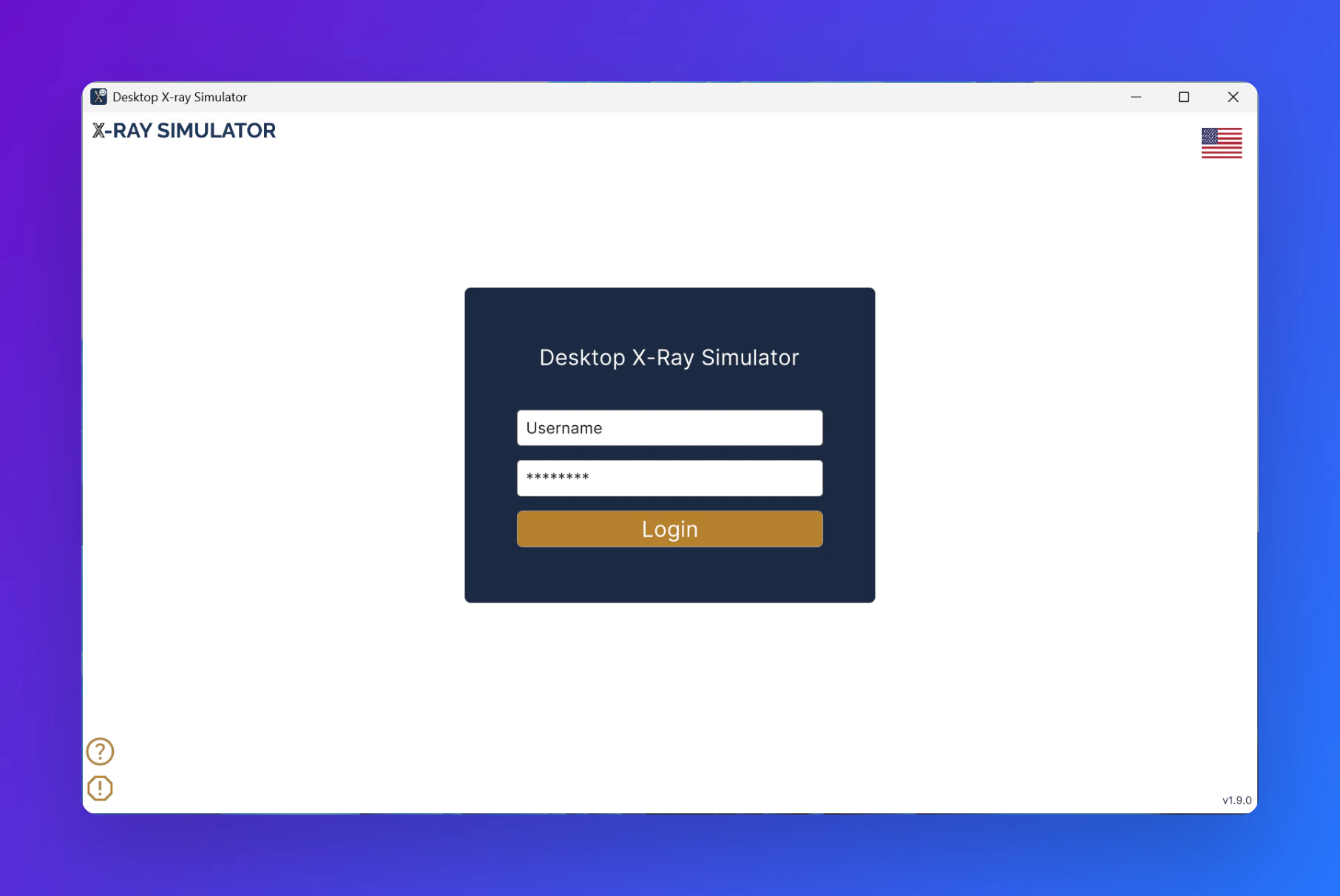
2
Selecting a case
After logging in, you are taken to the case selection screen. Start by choosing a body region in the left column - for example, Upper extremity and shoulder girdle. The middle column updates to show available exams for that region; select one to populate the right column with simulation cases. Click the arrow next to a case to load it.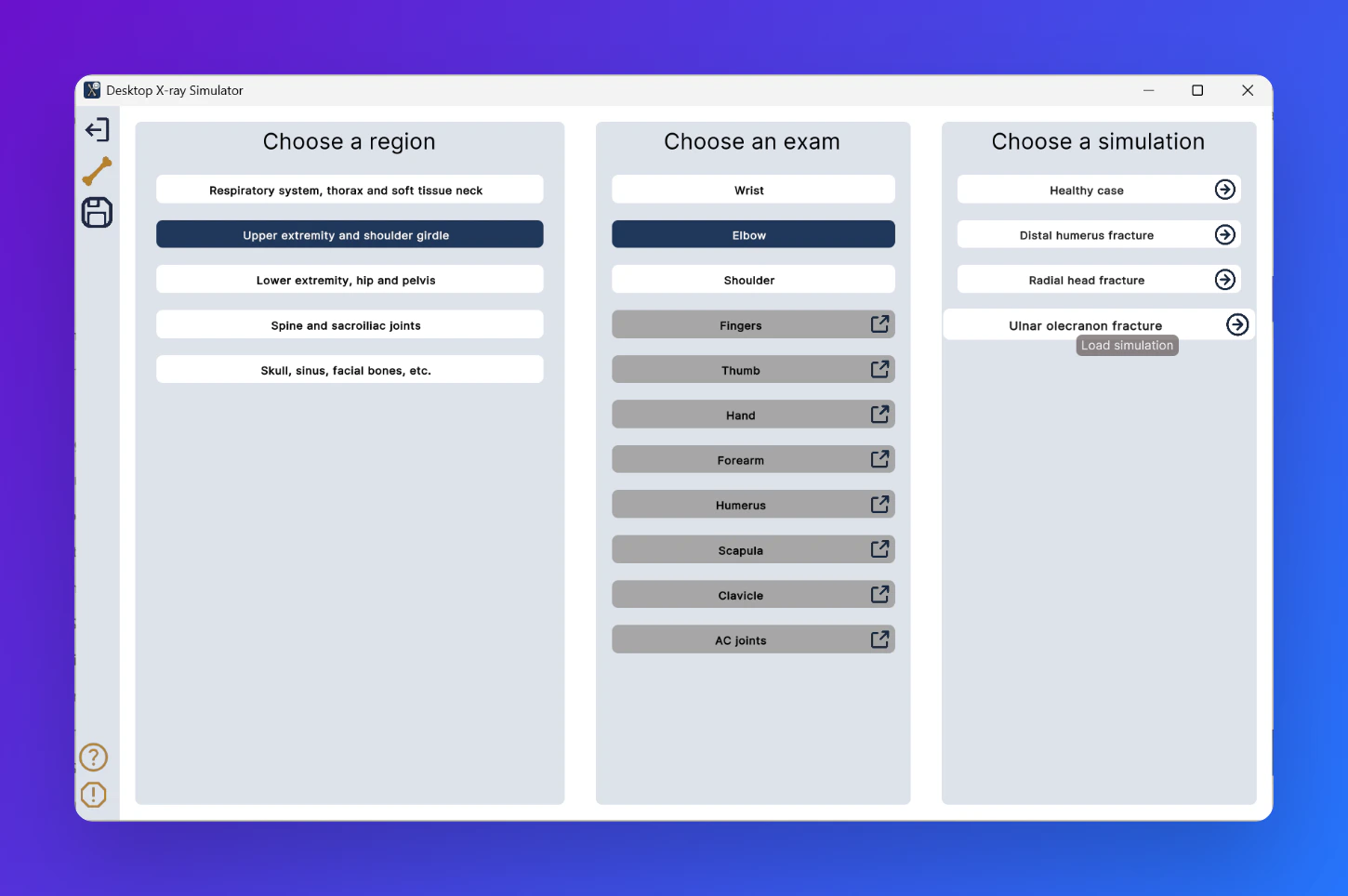
3
The simulation workspace
Once a case loads, the workspace is divided into three panels. A is the overhead 3D view of the room, showing the patient, table, and X-ray tube at a glance. B is the secondary viewport, displaying a closer angle of the scene - useful for assessing patient and tube positioning in relation to each other. C is the X-ray output panel, which displays the most recent exposure and updates in real time as you adjust parameters.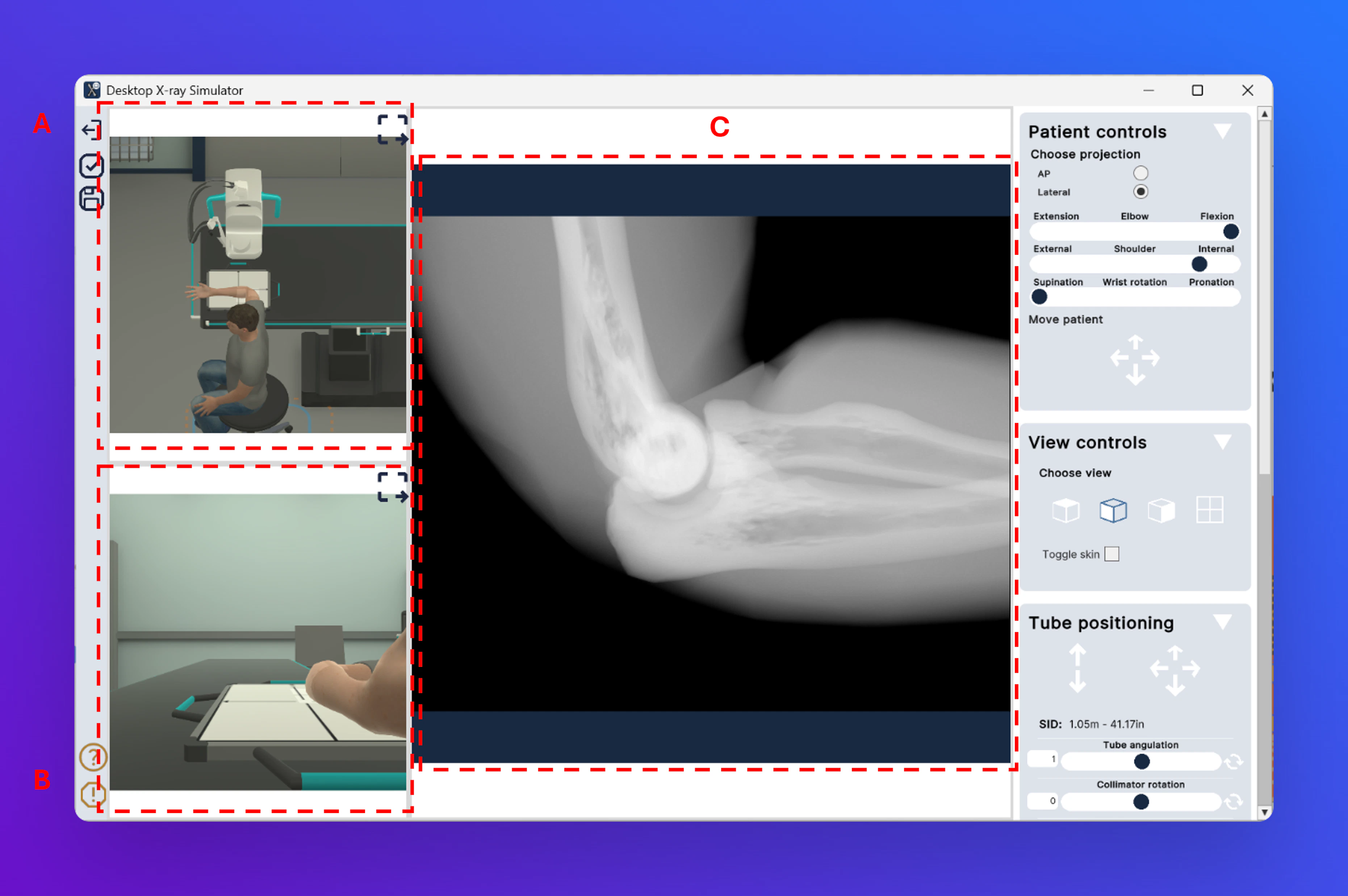
4
Patient controls
The Patient controls panel (D) is at the top of the right sidebar. Use Choose projection to switch between AP and Lateral. The sliders below let you adjust joint position - elbow flexion/extension, shoulder rotation, and wrist pronation/supination. Use Move patient to reposition the patient on the table.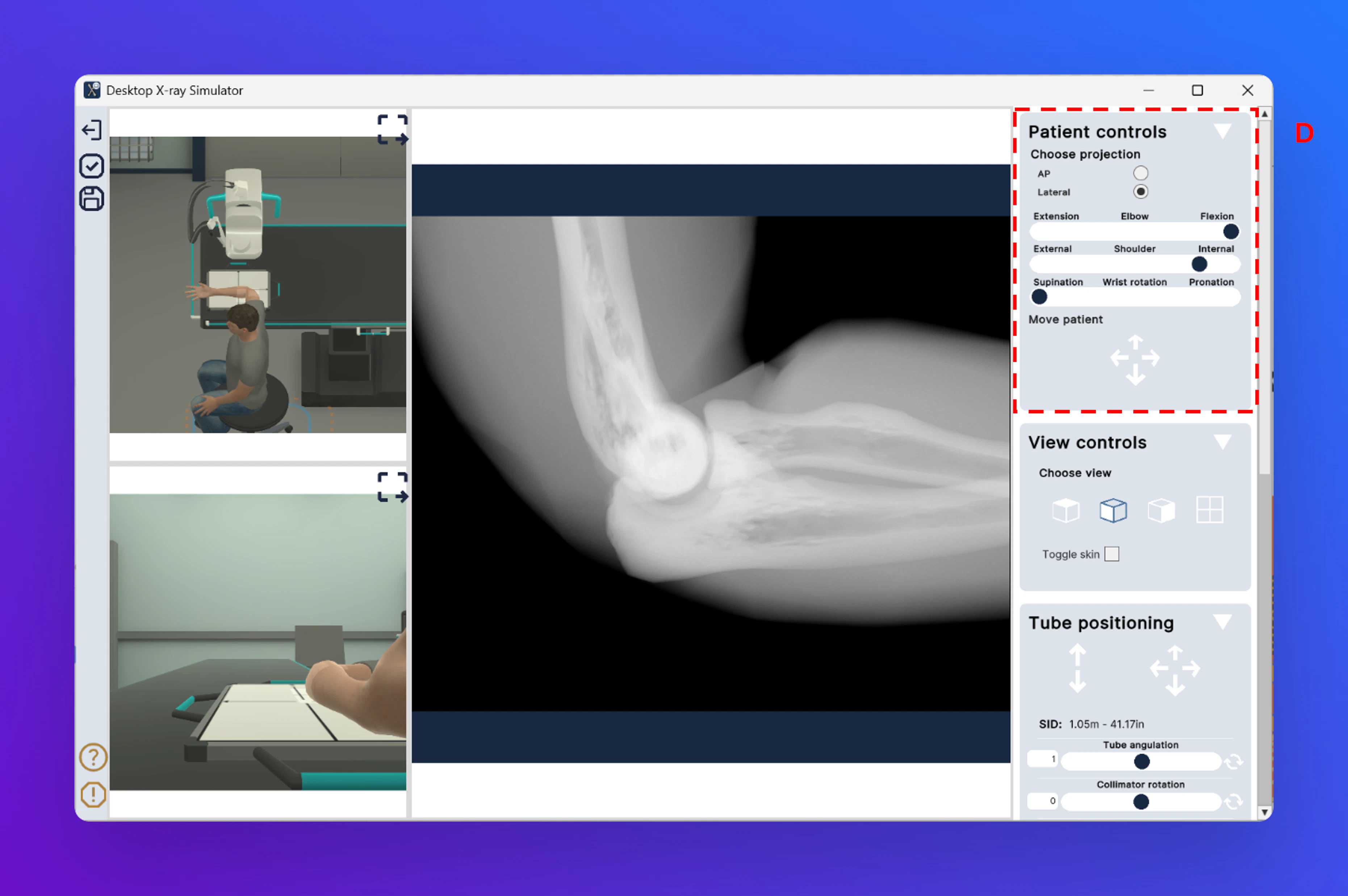
5
View controls
The View controls panel (E) sits below Patient controls. Use the four view icons under Choose view to switch the secondary viewport (B) between different camera angles. The Toggle skin checkbox switches the patient model between a surface view and a skeletal/transparent view, useful for assessing anatomy and tube alignment.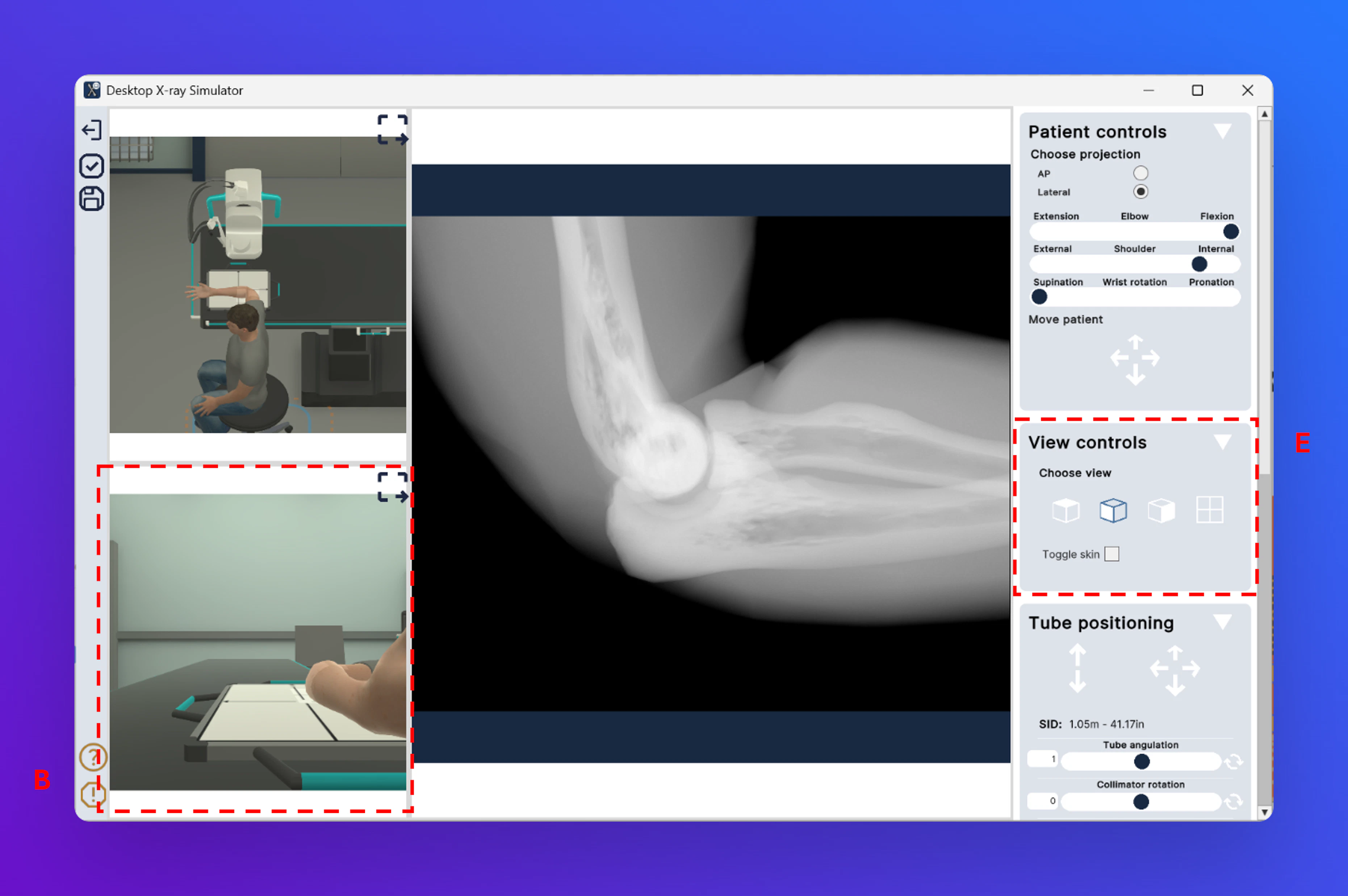
6
Tube positioning
The Tube positioning panel (F) controls the physical position of the X-ray tube. The arrow clusters adjust the tube horizontally and vertically. SID (Source-to-Image Distance) is displayed in real time as you move the tube. Use the Tube angulation, Collimator rotation, and Column rotation sliders to fine-tune the angle and orientation of the beam.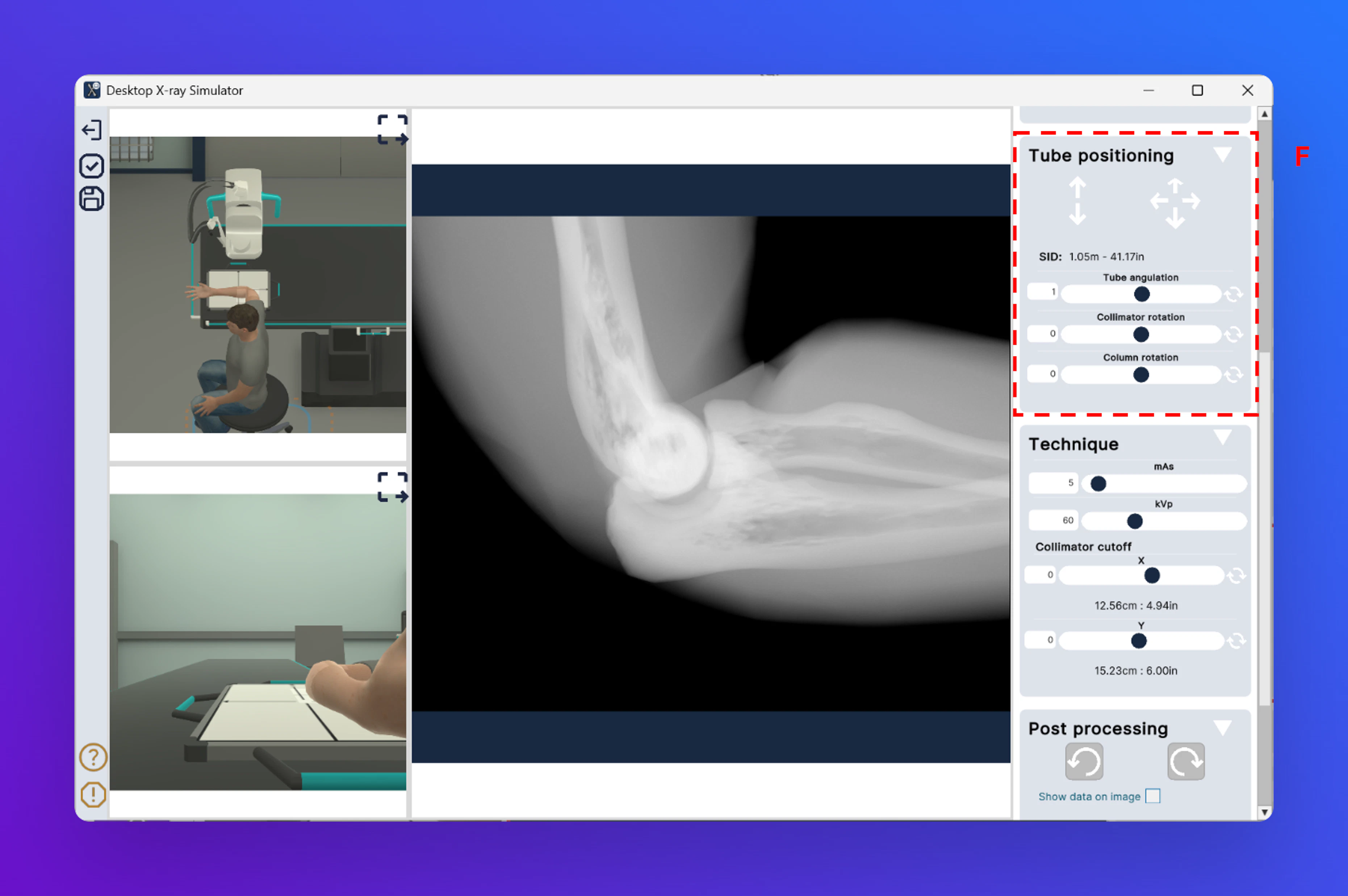
7
Technique
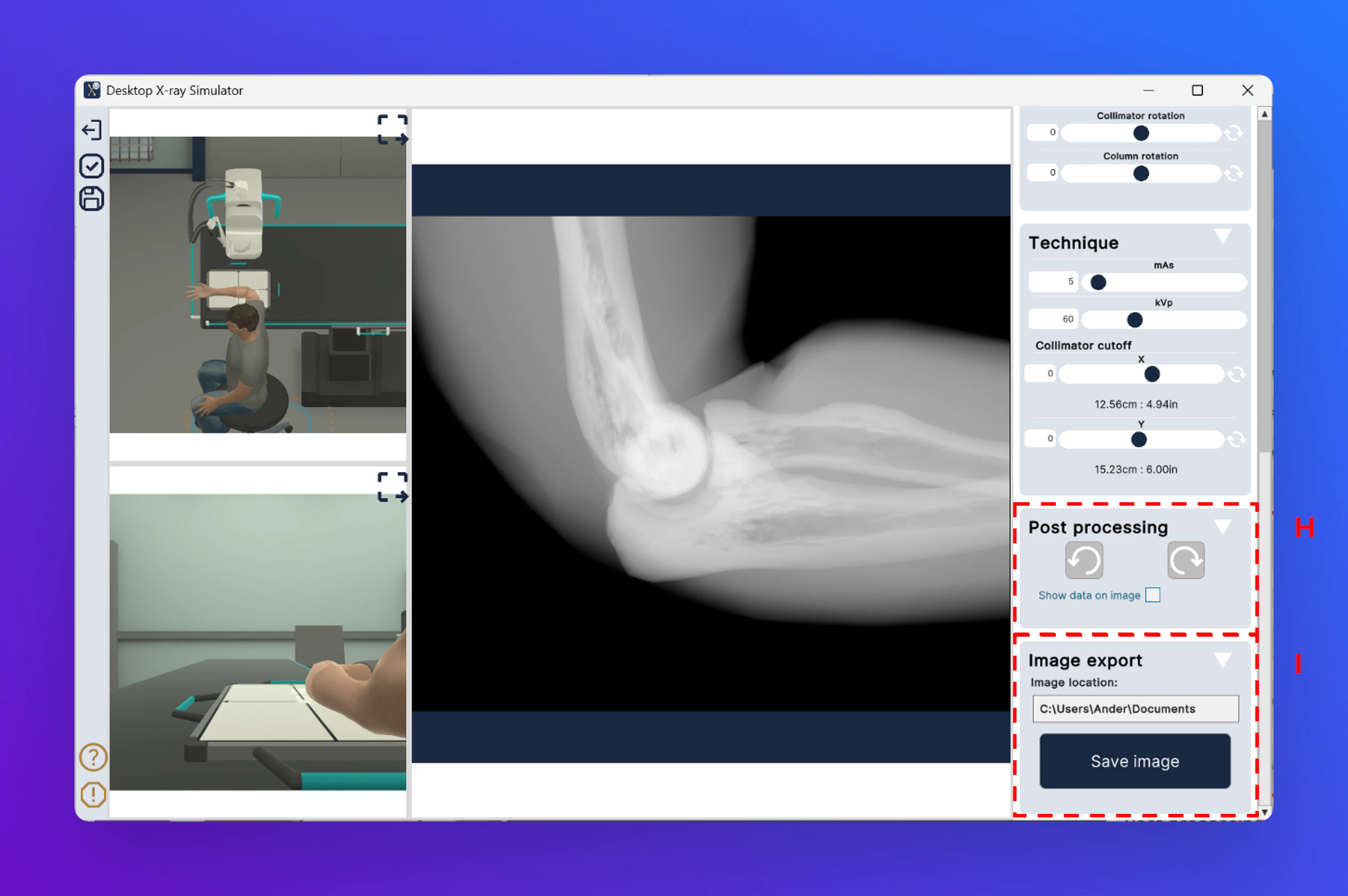
The Technique panel (G) is where you set your exposure parameters. Adjust mAs to control the radiation dose and kVp to set the beam energy. The Collimator cutoff sliders control field size in the X and Y axes, with the resulting dimensions shown in centimetres and inches below each slider. Changes here are reflected immediately in the X-ray output panel (C).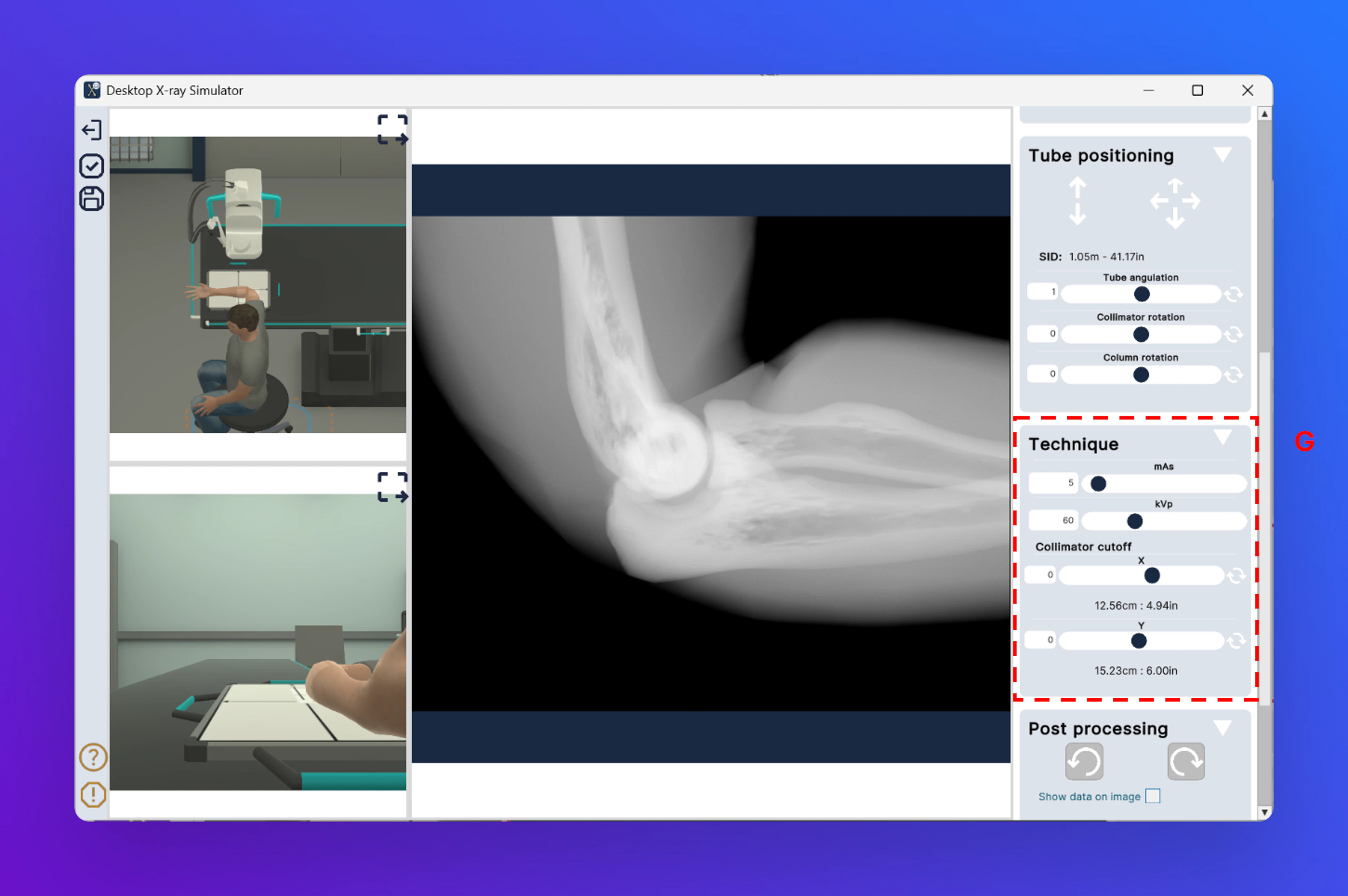
8
Post processing and image export
The Post processing panel (H) provides two image processing buttons for adjusting the appearance of the exposure. Tick Show data on image to overlay exposure parameters directly on the X-ray. Below it, the Image export panel (I) shows the save location on your computer. Click Save image to export the current exposure as an image file to that folder.